2026-10-25 · 6 min read
Tunabee Card Pop: Point Your iPhone at a Card and Watch the Character Pop Out in 3D
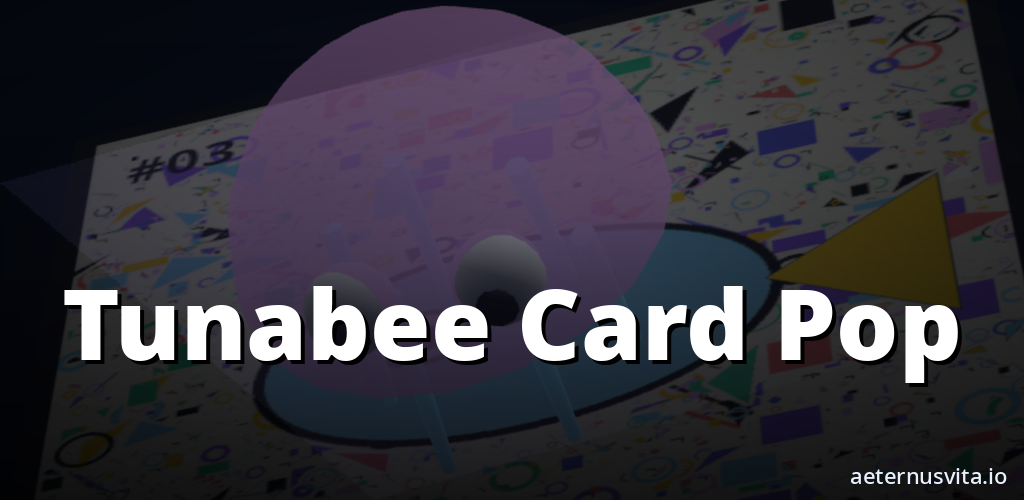
How Tunabee Card Pop works — print a card, open the page on your iPhone and watch the character pop out in 3D.
By AeternusVita
“How Tunabee Card Pop works — print a card, open the page on your iPhone and watch the character pop out in 3D.”
Tunabee Card Pop starts with paper. You print a Tunabee card, open a page on your iPhone, and point the camera at the card. The character on that card pops out in 3D and sits on the card while you watch.
It is coming soon from aeternusvita.io. This post explains what it is, how it works, what the cards and characters do, and who it suits, using only the details from the project brief and the store copy. If you want to hear when it is ready, you can get notified from Tunabee Card Pop.
What Tunabee Card Pop is
The one-line pitch says it plainly:
"Point your iPhone at a Tunabee card and its character pops out in 3D."
The subtitle is "A character pops off the card".
The en-GB store description adds:
"Tunabee Card Pop shows a 3D character on a printed card. You watch it on your iPhone. Open the page in the phone's browser and point the camera at the card. The character for that picture pops out in 3D and sits on the card."
There is no headset and no app to install for the phone version. You open the page in the browser on your iPhone and use the camera you already have. The printed card is the trigger and the phone is the viewer. The 3D character appears on the card itself.
The project is made by aeternusvita.io and is listed in the factory under phone. The brief also notes builds for Android, Web and a Chrome extension, with the iPhone web build as the lead.
How it works on iPhone
The steps stay the same each time. Print a card — twelve are ready to print, so you can start with one. Any normal printer will do for a test copy.
Open the page on your iPhone. The Play copy says: "Open the page in the phone's browser and point the camera at the card." Allow camera access when asked, then point the phone at the picture.
When the camera recognises the card, the character pops out in 3D and sits on the card. Keep the picture in view and the character stays. Point the camera at a different card and that card's character pops out instead. You swap the paper and the new character appears.
The closing line sums up the loop: "Print a card, open the page on your iPhone, and point the camera at the picture."
The twelve cards
Twelve cards are ready to print. The brief says the pictures "use strong shapes and fine detail, so the camera can recognise the card." That high-contrast art helps the camera tell one card from another in ordinary room light.
You get a printable sheet to print at home. A clean print on plain paper works. If a card does not trigger, check the whole picture is in view and the light is even.
Each picture maps to a character. You do not choose from a menu — the card does that for you. Hold up the card you want to see and its character appears.
The four characters
Four characters belong to the set. The Play copy says: "They are Tunabee and three friends. Each one appears with a pop, then plays an idle animation."
The Chrome Web Store edition names the four: Tunabee, Coral Crab, Star Jelly and Kelp Turtle. It also says: "Collect all four friends: Tunabee, Coral Crab, Star Jelly and Kelp Turtle. Your collection is remembered between sessions."
On the phone, each character appears with a pop and then settles into an idle animation. The first moment is a short pop onto the card, followed by a gentle loop while the card stays in view. The brief does not describe longer interaction chains on the phone. The action is the pop and the idle.
Twelve cards and four characters means you will see each friend on more than one picture. Swapping cards is how you meet each one.
Sound and movement
Sound is kept to three small parts. The brief states: "A pop, a spin and a card each have a sound." You hear a sound for the pop when the character appears, a sound for a spin, and a sound tied to the card.
There is no long music track or spoken dialogue described in the brief. The sounds mark the moments that matter: the character arriving, turning, and the card being recognised.
The Chrome edition adds one extra detail: "Tap the character to make it dance." That tap is specific to the Chrome tab version where you hold a card up to your computer webcam. The iPhone browser view is described with the pop and the idle animation, without that tap step.
How it works on a computer with Chrome
The same idea is available as a Chrome extension for a computer with a webcam. The summary says:
"Hold a printed Tunabee card up to your webcam and its character pops out in 3D. No cards? Try the built-in demo."
The longer description adds:
"Tunabee Card Pop is a small augmented-reality card game from aeternusvita.io that opens in its own Chrome tab."
"Print the cards (a printable sheet is included) and hold one up to your computer's webcam. The character on that card pops out in 3D. Tap the character to make it dance."
For that version, the collection of the four friends is remembered between sessions, so you can see which ones you have already triggered. If you have no printer or no webcam, you can choose "Try without cards" and flip through the characters on screen.
The brief also notes for the extension:
"Privacy: everything runs inside the extension. The camera image is processed on your computer and never uploaded. There are no accounts, ads or analytics. Your collection progress stays in local browser storage."
That line is specific to the Chrome extension. The phone version is a page you open in the browser on your iPhone with the same simple flow: open the page, point the camera, keep the card in view.
Who it suits
The brief does not assign a fixed age range or genre. It suits families with a printer at home, a classroom trying a short AR demo, or anyone who wants to see AR without a headset.
Because the cards are printed, a parent or teacher can set it up beforehand. Print a few cards, open the page on the iPhone, and let the child hold the card while the adult holds the phone, or the other way around. Keeping the picture in view is easy to show once.
Each trigger is a pop and an idle, with no long session to manage. You can try one card and stop, or work through several in turn.
What you need to try it
For the iPhone view: a printed Tunabee card and an iPhone with a browser. Open the page, allow the camera, point it at the card, and keep the picture in view. A clean, flat print with even light works best.
For the Chrome version: a computer with a webcam and the Chrome extension. Print the cards if you can; if you cannot, use "Try without cards" to flip through the characters on screen. Your webcam image is processed on your computer and is not uploaded.
Coming soon
Tunabee Card Pop is coming soon on aeternusvita.io. Nothing has been released or submitted yet, so there is no release date, price, rating or review to share.
If you want to see the pop for yourself, get notified from Tunabee Card Pop and you will hear when the page and the printable cards are ready. When it is live, print a card, open the page on your iPhone, and point the camera at the picture.
Related articles
2026-10-25 · 6 min read
Afterburn: How an Arcade Fitness Session Works in a VR Room
How Afterburn works — an arcade fitness session in VR where you repeat one action in one room to a score.
Read article →2026-10-25 · 6 min read
AfterShift: How an Active Fitness Session Works in One VR Room
How AfterShift works — an active fitness session in VR where you practise one movement in one room to a score.
Read article →2026-10-25 · 7 min read
Arcade Defender: How a Stationary VR Arena Defence Works Across Ten Waves
How Arcade Defender works — hold one spot in VR, swap four gadgets across ten waves to a boss.
Read article →